
How to Install LEO Order Editing & Upsell App on Shopify (Step-by-Step Guide)

Running a Shopify store means dealing with last-minute customer changes, wrong addresses, variant mistakes, or forgotten items. These small issues often turn into support tickets, refunds, or failed deliveries. This is exactly where the LEO Order Editing & Upsell Shopify app helps you regain control while improving customer experience and revenue.
In this detailed, step-by-step guide, you'll learn how to install, configure, and add the LEO Order Editor block to your Thank You and Order Status pages, along with best practices, use cases, FAQs, and optimization tips based on real Shopify merchant pain points.
Introduction to LEO - Order Editing & Upsell
LEO Order Editing Shopify app that allows customers to edit their orders after checkout without contacting support. From correcting addresses to adding products, everything happens through a secure self-service flow.
This app is especially valuable for fast-growing Shopify stores that want to reduce operational friction while increasing Average Order Value (AOV). By enabling post-purchase edits and upsells, merchants can turn mistakes into opportunities.
Key Features of the LEO Order Editing Shopify App
The LEO Apps is designed to cover all major post-checkout scenarios with flexibility and control.
- Self-service order editing: Customers can edit addresses, items, variants, quantities, and notes.
- Edit products after checkout: Add new items, replace products, or update quantities seamlessly.
- Post-purchase upsells: Display upsell products on Thank You and Order Status pages.
- Edit time limits: Control how long customers can modify their orders.
- Custom permissions: Decide what customers are allowed to edit or cancel.
- Auto-tag edited orders: Instantly identify modified orders for fulfillment teams.
- Built-in ticket system: Manage support requests directly inside the app.
- Detailed analytics: Track edits, upsells, and customer behavior.
- 18+ language support: Ideal for global Shopify stores.
Benefits for Store Owners and Customers
For merchants, the LEO Apps significantly reduces manual work and operational errors. Instead of replying to repetitive emails, your team can focus on growth and customer experience.
For customers, the app creates a stress-free shopping journey. Knowing they can fix mistakes builds confidence and increases the likelihood of repeat purchases.
How to Install & Enable LEO - Order Editing & Upsell on Shopify (Complete Guide)
This step-by-step guide explains how to install, enable, and activate LEO Order Editing & Upsell so customers can edit their orders after checkout from both the Thank You and Order Status pages.
Step 1: Install the App
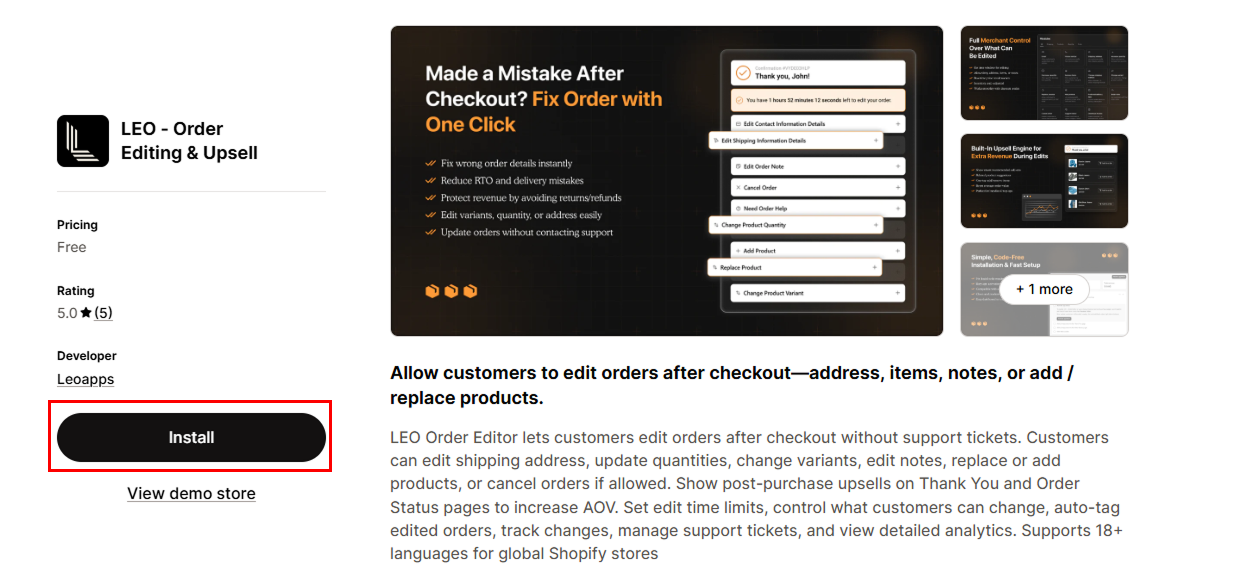
- Log in to your Shopify Admin.
- Open the Shopify App Store and search for LEO - Order Editor.
- Click Install.
- Review the permissions and click Install App again to confirm.
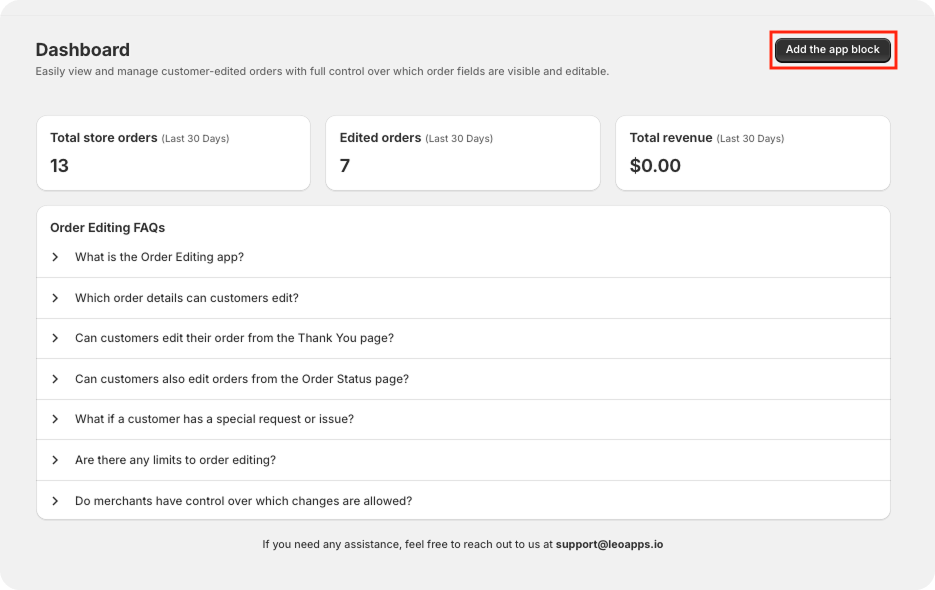
Once installed, you'll be redirected to the app dashboard inside your Shopify admin.
Step 2: Add the App Block
With the app open, click the "Add the App Block" button at the top to insert the editor blocks into your checkout pages.
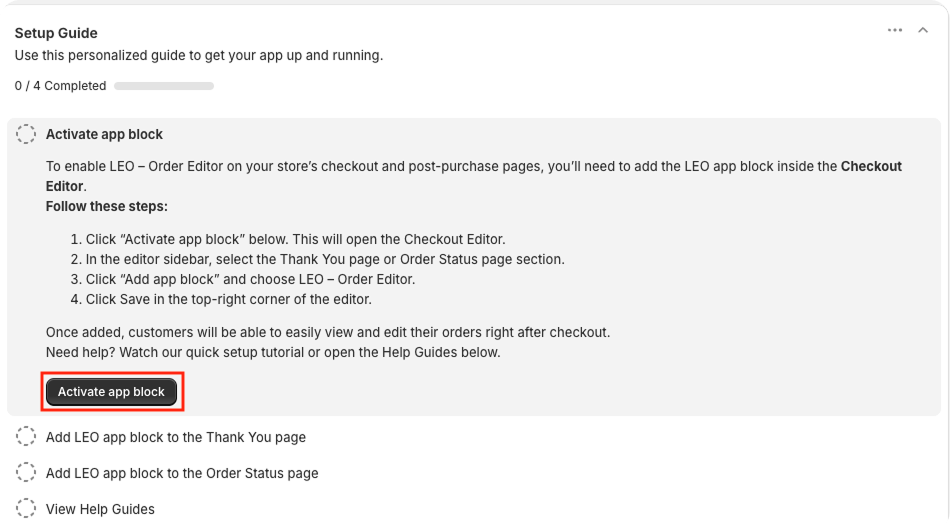
You can also add the block from the Setup Guide inside the app by clicking Add the app block there.
Video Guides (Optional but Helpful)
- Order Status Page: https://ordereditor.leoapps.io/orderstatus.mp4
- Thank You Page: https://ordereditor.leoapps.io/thankyou.mp4
These short videos show the exact steps inside Shopify's checkout editor.
Step 3: Choose Block Placement
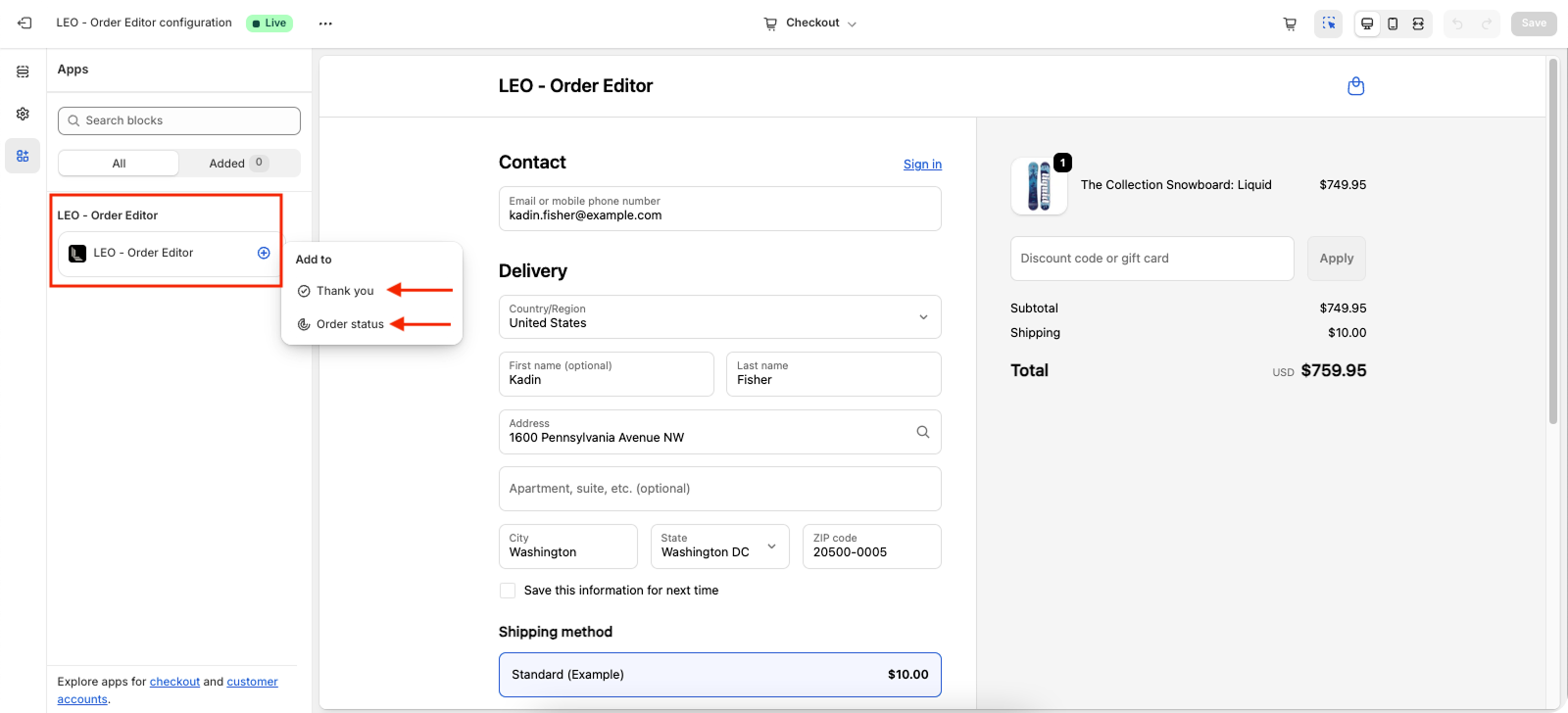
After clicking Add the App Block, you'll be redirected to the Shopify checkout editor.
- In the left sidebar, find LEO - Order Editor.
- Click the "+" icon next to it.
- You'll see two placement options:
- Thank You
- Order Status
Step 4: Add the Block to the Order Status Page
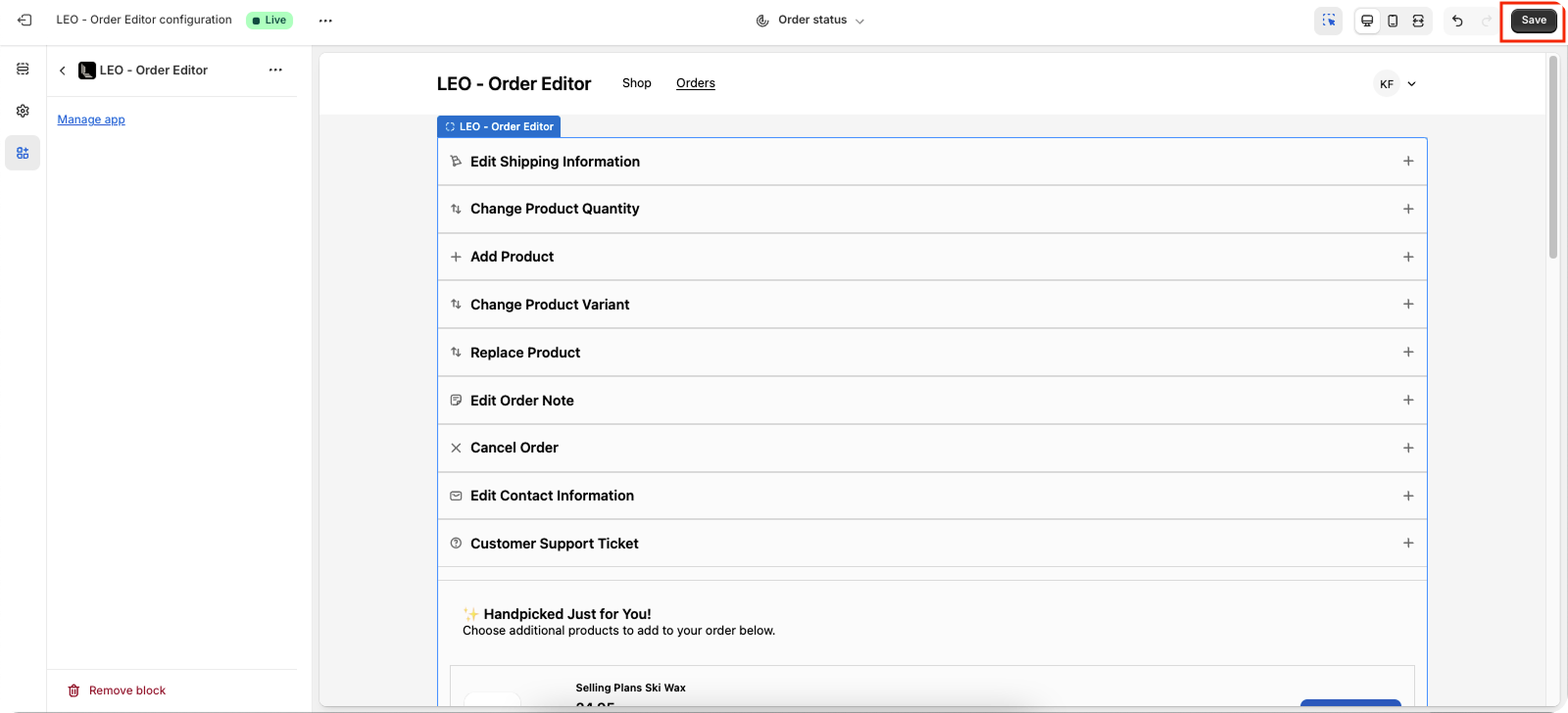
- Select Order Status.
- The block will be added instantly.
- Click Save in the top-right corner to apply the changes.
This allows customers to edit their orders while viewing the order status.
Step 5: Add the Block to the Thank You Page
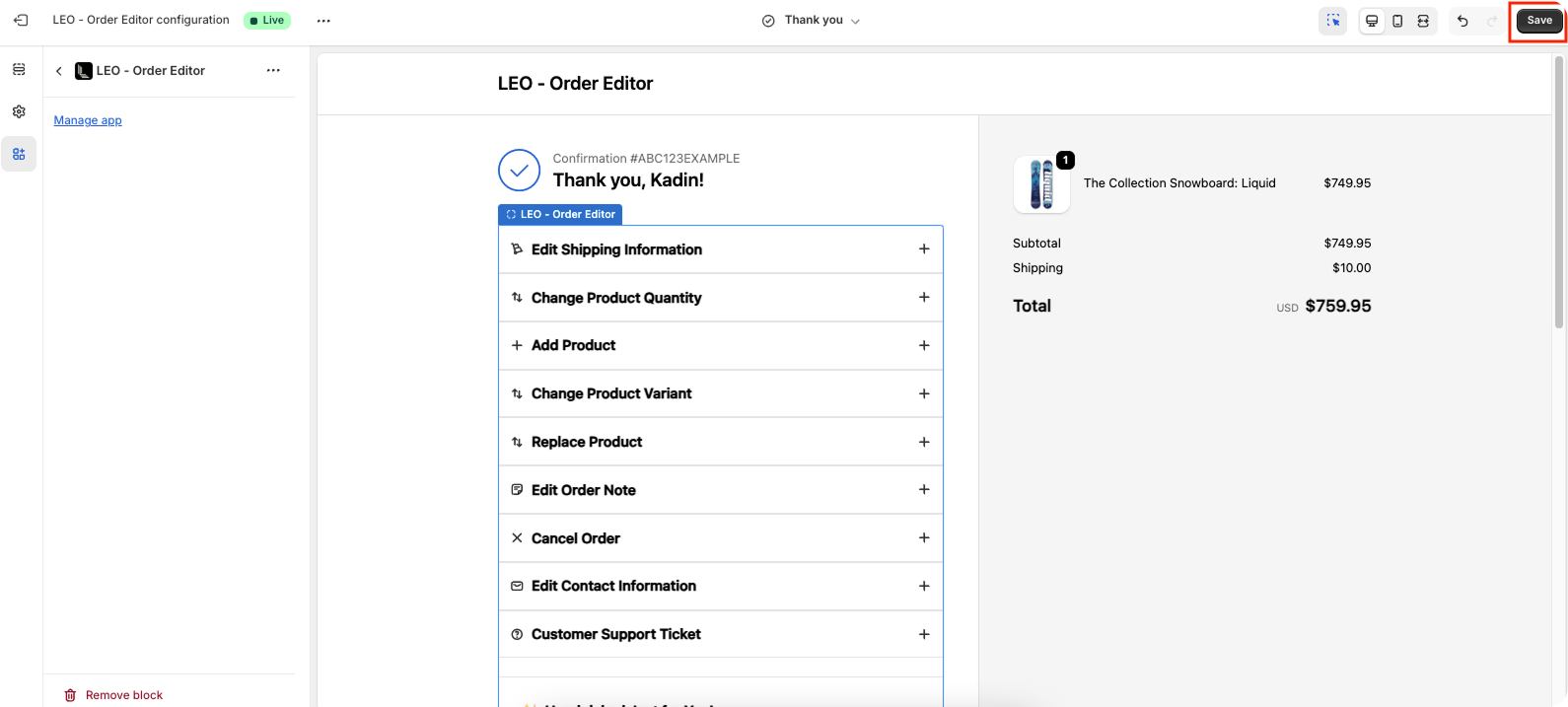
- Select Thank You under LEO - Order Editor.
- The block will be added to the Thank You page.
- Click Save in the top-right corner to finalize.
This enables customers to make edits immediately after checkout.
Best Practices to Configure Order Editing Rules
Proper configuration is key to avoiding fulfillment issues.
- Set a clear edit time window (for example, 30–60 minutes).
- Disable edits once an order is marked as fulfilled.
- Allow address changes but restrict product edits for certain collections.
- Use auto-tags to notify warehouse teams about edited orders.
These rules balance flexibility with operational safety.
Analytics, Order Tracking, and Support Management
LEO provides in-depth analytics to help you understand customer behavior. You can track how many orders were edited, what changes were made, and how much revenue upsells generated.
The built-in ticket system centralizes customer requests, reducing dependency on external support tools and improving response times.
Final Thoughts
LEO - Order Editing & Upsell is more than just an order editing tool, it's a customer experience and revenue optimization solution. By enabling self-service edits and smart upsells, Shopify merchants can reduce support workload, prevent errors, and increase trust.
If you want fewer support tickets, happier customers, and higher AOV, installing and setting up our Order Editing and Upsell Shopify App is a smart move for long-term growth.
Frequently Asked Questions
What is the Order Editing app?
The Order Editing app allows merchants to give their customers the ability to update order details after purchase. Customers can modify shipping information, update order notes, adjust product quantities, or even request product changes directly from the Thank You page or Order Status page.
Can customers cancel orders using LEO Order Editing app?
Yes, you can allow order cancellation within a defined time window if your store policy supports it.
Which order details can customers edit?
Customers can update contact information, shipping details, and order notes, cancel orders, change product quantities, replace products, add new products, and change product variants. This provides flexible post-purchase order management for both merchants and customers.
Can customers edit their order from the Thank You page?
Yes, customers can edit their order directly from the Thank You page immediately after checkout. The app block ensures that customers can request changes without needing to contact support.
Can customers also edit orders from the Order Status page?
Absolutely. Customers can revisit their Order Status page and make adjustments, such as updating addresses or changing quantities, until the order is processed.
Is coding required to set up the app?
No. Everything is managed through Shopify's visual editor and the app dashboard.
Are there any limits to order editing?
Customers can edit their orders multiple times without any limit. They can update shipping information, change the order note, and freely add, remove, or modify products as needed. This gives customers complete flexibility to manage their orders after purchase.
Can I control what customers are allowed to edit?
Absolutely. You have full control over address edits, product changes, notes, and cancellations.
